Client downloads
Chatbox: download and setup guide (Windows / macOS / mobile)
Chatbox download and setup: get the Windows, macOS or mobile app from the official site, add Xisu AI as a custom provider, enter the API key, address and model, and start chatting. Includes common issues such as the web version not connecting.
Chatbox is a clean, simple AI chat client for Windows, macOS, Linux and mobile. Its website is reachable from mainland China without a VPN.
You need an API key first. If you don't have one yet, follow First steps: sign up, add funds, create a key.
1. Download and install
Open https://chatboxai.app, click Desktop and mobile apps, and download the build for your system. On Windows you can also use the official download link. Run the installer.
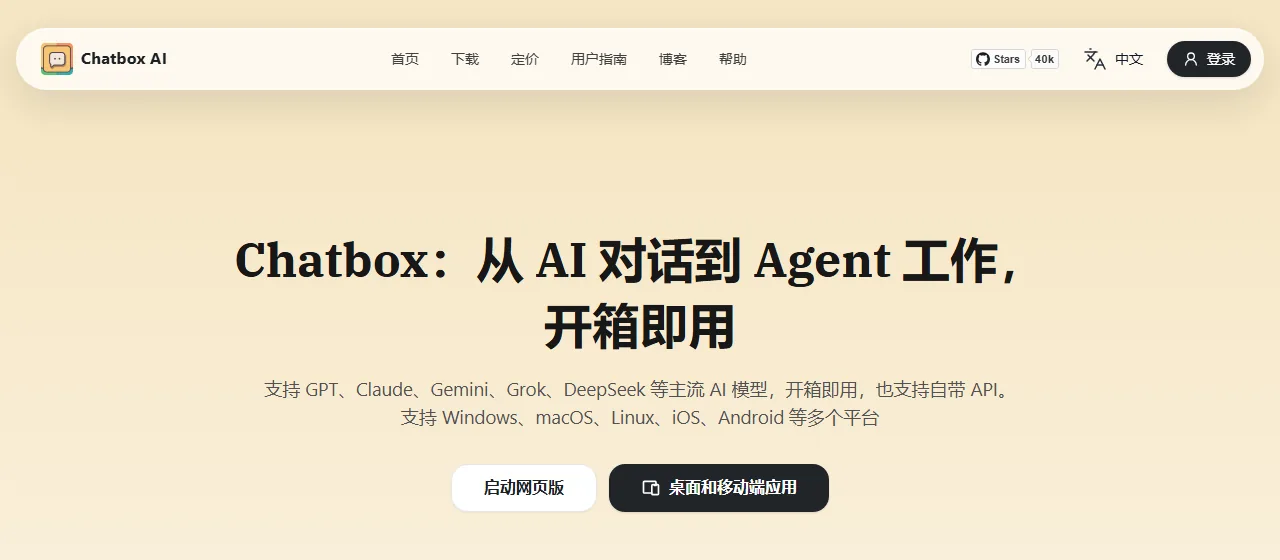
Use the desktop or mobile app. The Chatbox web version calls the API straight from the browser and cannot connect to Xisu AI at the moment; it shows "Failed to fetch models".
2. Skip the guide
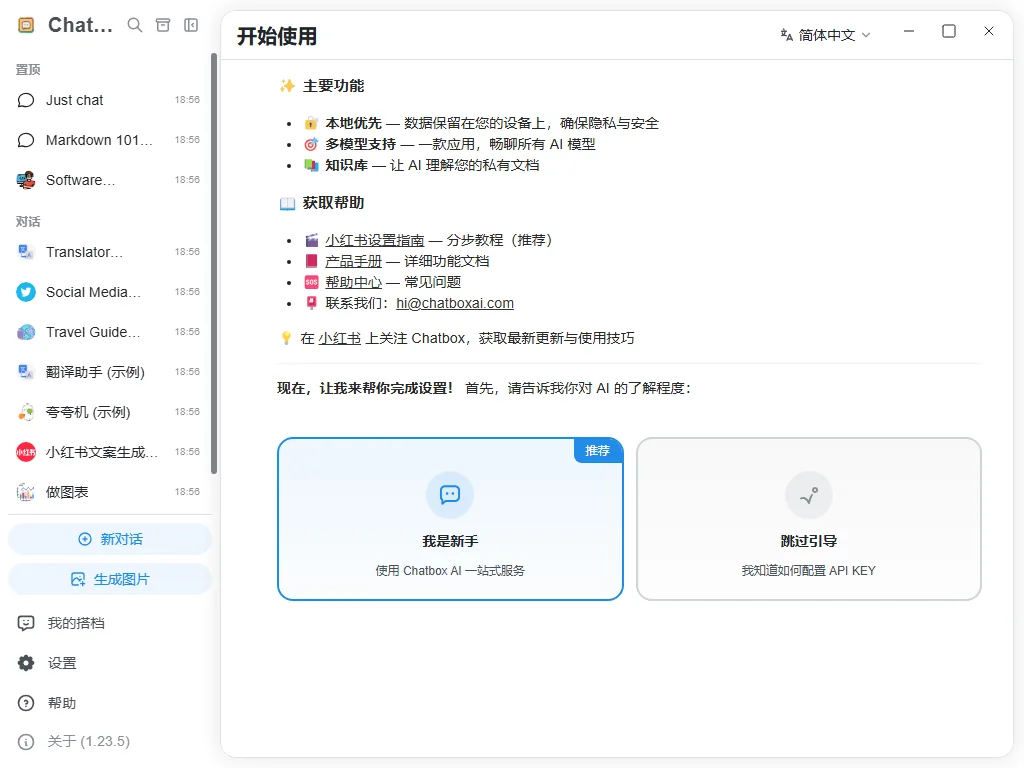
The first launch opens a Getting started page. Scroll down, click Skip guide, then click Set up API.
3. Add a custom provider
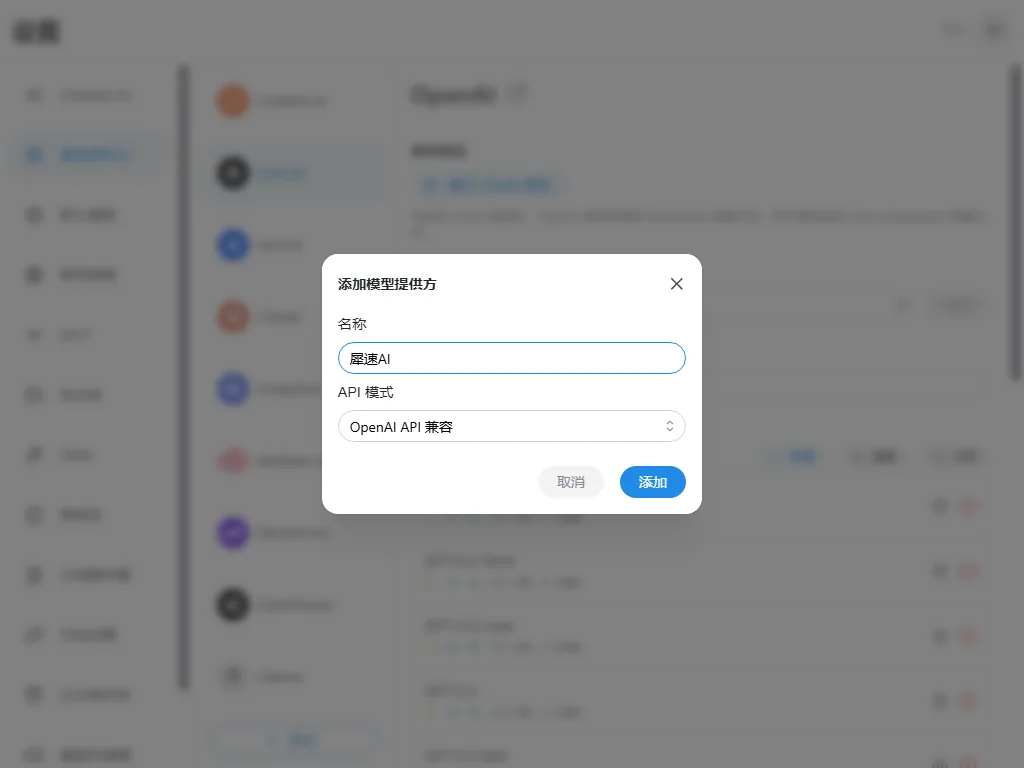
At the bottom of the Model provider list, click Add and choose Add custom provider at the very bottom. Name it Xisu AI, keep the API mode as OpenAI API compatible, and click Add.
4. Enter the key and host
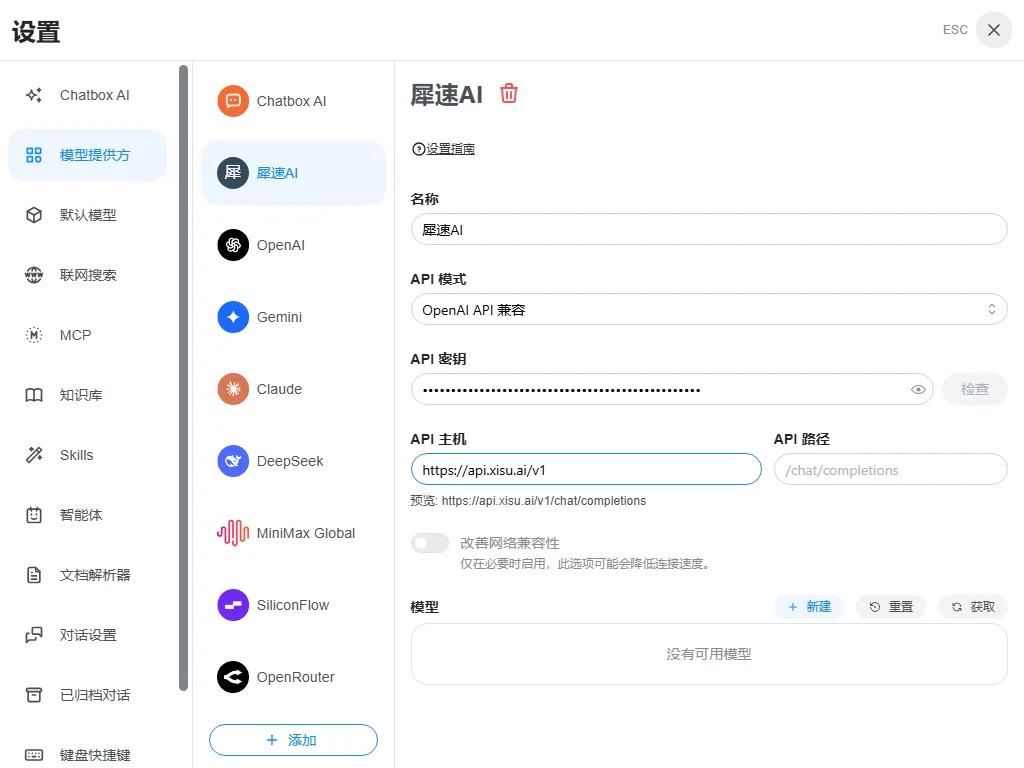
| Field | Value |
|---|---|
| API key | Paste your key |
| API host | https://api.xisu.ai/v1 |
| API path | Leave empty |
The preview line should read https://api.xisu.ai/v1/chat/completions.
5. Add models
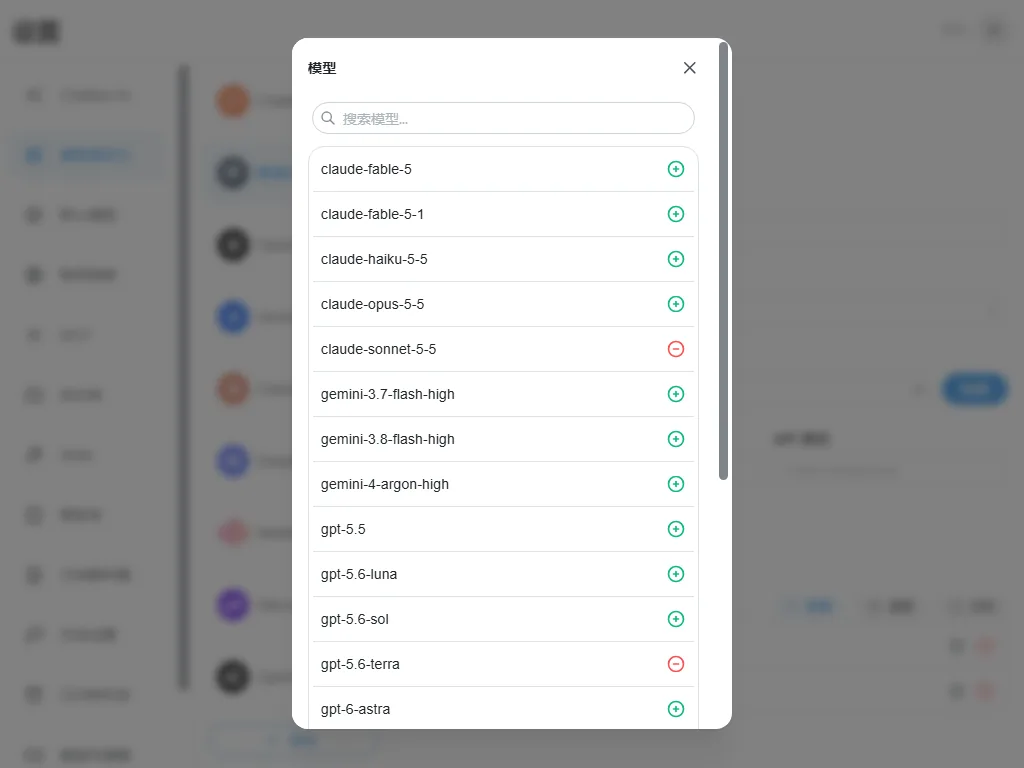
In the Models section click Fetch to list the models your account can use. Click the green plus next to a model to add it; it turns into a red minus once added. For example, add claude-sonnet-5-5 and gpt-5.6-terra.
6. Test the connection
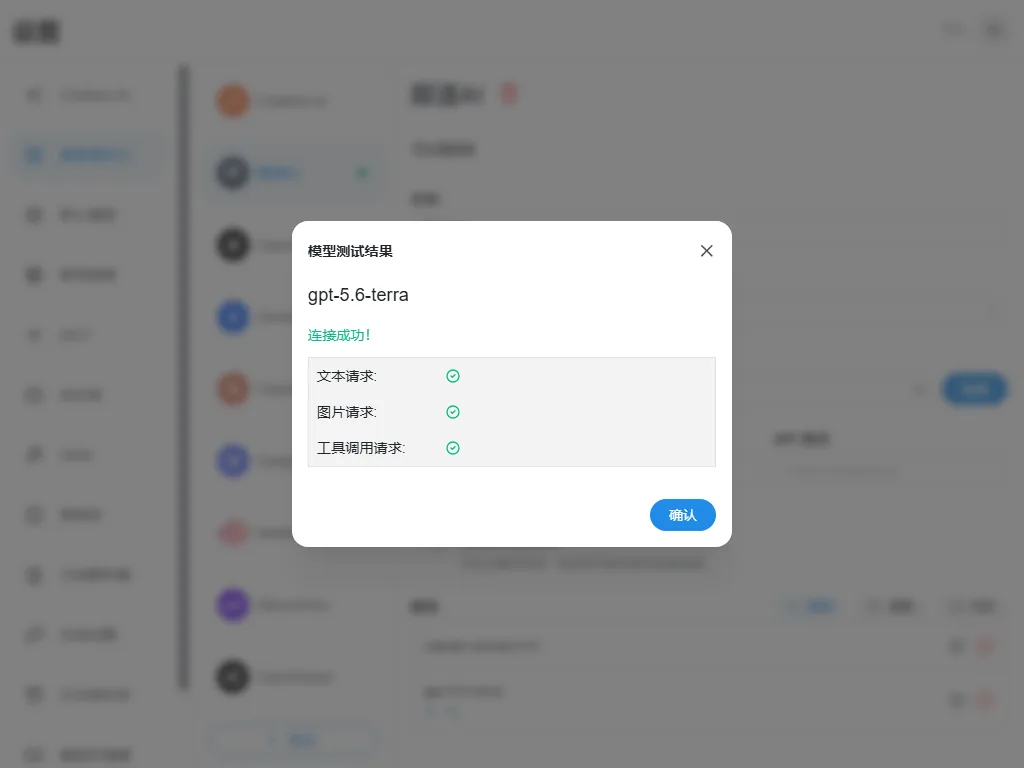
Click Check next to the API key and pick a model. "Connection successful!" means you are set.
7. Start chatting
Close settings, click New chat, pick the model you added under Select model at the bottom right, type a question and press Enter.
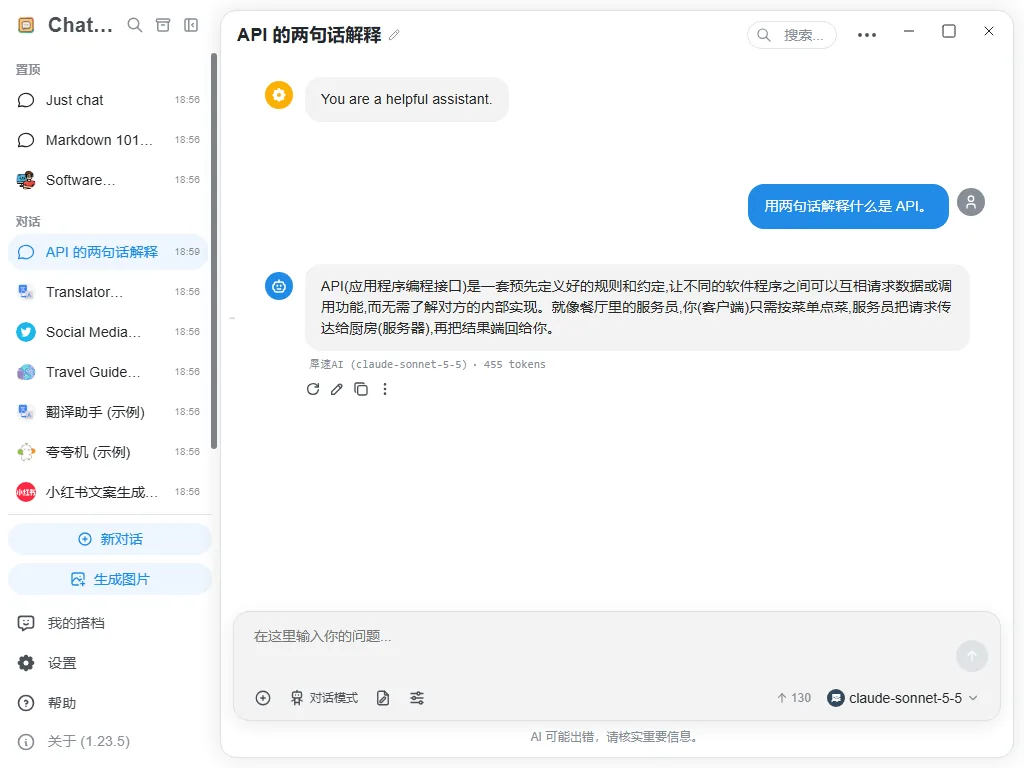
Each reply shows the provider and model name plus the tokens used. The matching cost appears in the console under Request log.
Troubleshooting
Failed to fetch models: make sure you are using the desktop or mobile app, the API host is https://api.xisu.ai/v1, and the key has no extra spaces.
401 error: the key is wrong or revoked. Create a new one and paste it again.
Insufficient balance: top up in the console under Billing center.
One model fails: that model is temporarily unavailable. Try another and check the Models page.