Client downloads
Xisu AI clients: downloads and setup
Official download links, address settings and recommended models for Cherry Studio, Chatbox, Codex desktop, Codex CLI and Claude Code, all on one page.
This page is updated regularly. Last updated 2026-10-16; model names are current as of that date.
All five clients below work with Xisu AI using the same key and the same balance. If you don't have a key yet, start with First steps: sign up, add funds, create a key.
We don't provide or mirror any installers. Download only from the official addresses listed here.
Pick a client
| Client | Platforms | Downloadable from mainland China | Best for | Address setting | Recommended model | Guide |
|---|---|---|---|---|---|---|
| Cherry Studio | Windows / macOS | Yes (official site, plus a Quark Drive mirror) | A Chinese-language desktop app for chat, translation and knowledge bases | OpenAI field: https://api.xisu.ai |
claude-sonnet-5-5; quick model claude-haiku-5-5 |
Cherry Studio guide |
| Chatbox | Windows / macOS / Linux / mobile | Yes (official site) | A clean chat app, including on your phone | API host https://api.xisu.ai/v1, API path empty |
claude-sonnet-5-5, gpt-5.6-terra |
Chatbox guide |
| Codex desktop | Windows | Yes (Microsoft Store) | Letting AI edit code through a desktop app | base_url = "https://api.xisu.ai/v1" in config.toml |
gpt-5.6-terra |
Codex desktop guide |
| Codex CLI | Windows / macOS / Linux | Installed via npm; switch to a domestic mirror if slow | Coding in the terminal, scripted automation | Shares config.toml with Codex desktop | gpt-5.6-terra |
Codex CLI guide |
| Claude Code | Windows / macOS / Linux | Installed via npm; switch to a domestic mirror if slow | Coding in the terminal with Claude models | ANTHROPIC_BASE_URL=https://api.xisu.ai (no /v1) |
claude-sonnet-5-5 |
Claude Code guide |
For chat, pick Cherry Studio or Chatbox. To have AI work directly on the code on your computer, pick Codex or Claude Code.
With or without /v1?
This is the most common setup mistake. Clients build the request path differently, so the address you enter differs:
| Where | Address to enter | Path the client ends up calling |
|---|---|---|
| Cherry Studio | https://api.xisu.ai |
adds /v1/chat/completions → https://api.xisu.ai/v1/chat/completions |
| Chatbox | https://api.xisu.ai/v1 |
https://api.xisu.ai/v1/chat/completions |
| Codex desktop / Codex CLI | https://api.xisu.ai/v1 |
https://api.xisu.ai/v1/responses |
| Claude Code | https://api.xisu.ai |
adds /v1/messages → https://api.xisu.ai/v1/messages |
| Your own code (OpenAI SDK) | https://api.xisu.ai/v1 |
built by the SDK |
To check, look at the full request path the client shows: it should contain exactly one /v1. /v1/v1 means you added one too many; none means one is missing.
Cherry Studio
Download: the official download page https://www.cherryai.com.cn/download has Windows and macOS builds; if it's slow, use the Quark Drive link further down the page.
Setup:
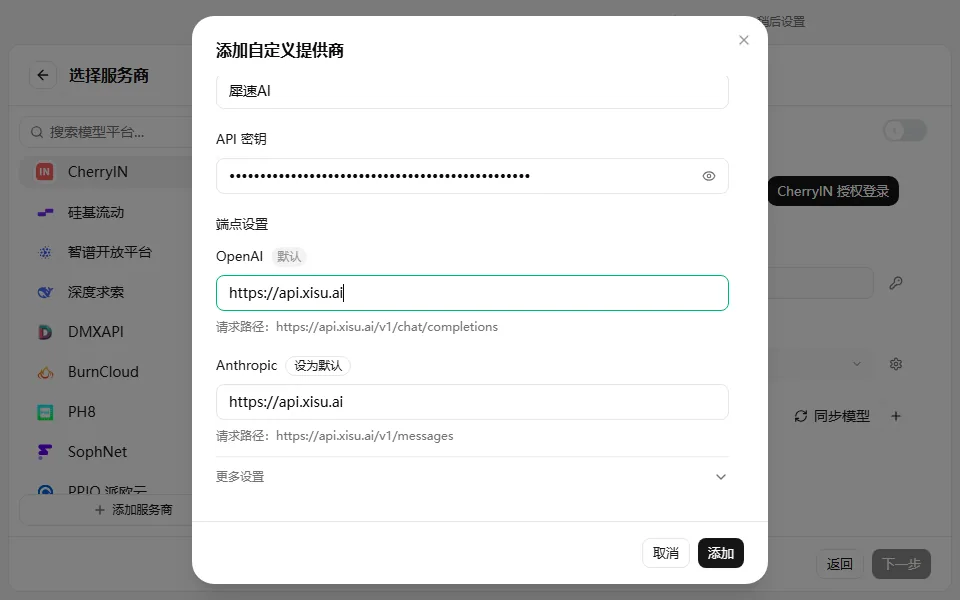
- On the welcome screen click "Configure other providers", or add a provider in Settings.
- Paste your key as the API key, set Endpoints → OpenAI to
https://api.xisu.ai, and click Set as default next to it. - Select the models you want and click Add selected models.
- Set the quick model to
claude-haiku-5-5. It writes conversation titles and is cheap and reliable.
Troubleshooting:
- Empty model list: check that the OpenAI field is
https://api.xisu.aiand set as default, then click Sync models. - "Failed to generate topic name": switch the quick model to
claude-haiku-5-5. Chat isn't affected. - An "Enable API Gateway?" dialog: click Cancel and switch to the chat page. You don't need it for everyday chat.
Full steps: Cherry Studio download and setup.
Chatbox
Download: the official site https://chatboxai.app; click Desktop and mobile apps and pick your system. On Windows you can also use the official download link.
Use the desktop or mobile app only. The Chatbox web version calls the API straight from the browser, which blocks the cross-origin request, so it can't connect to Xisu AI at the moment and shows "Failed to fetch models".
Setup:
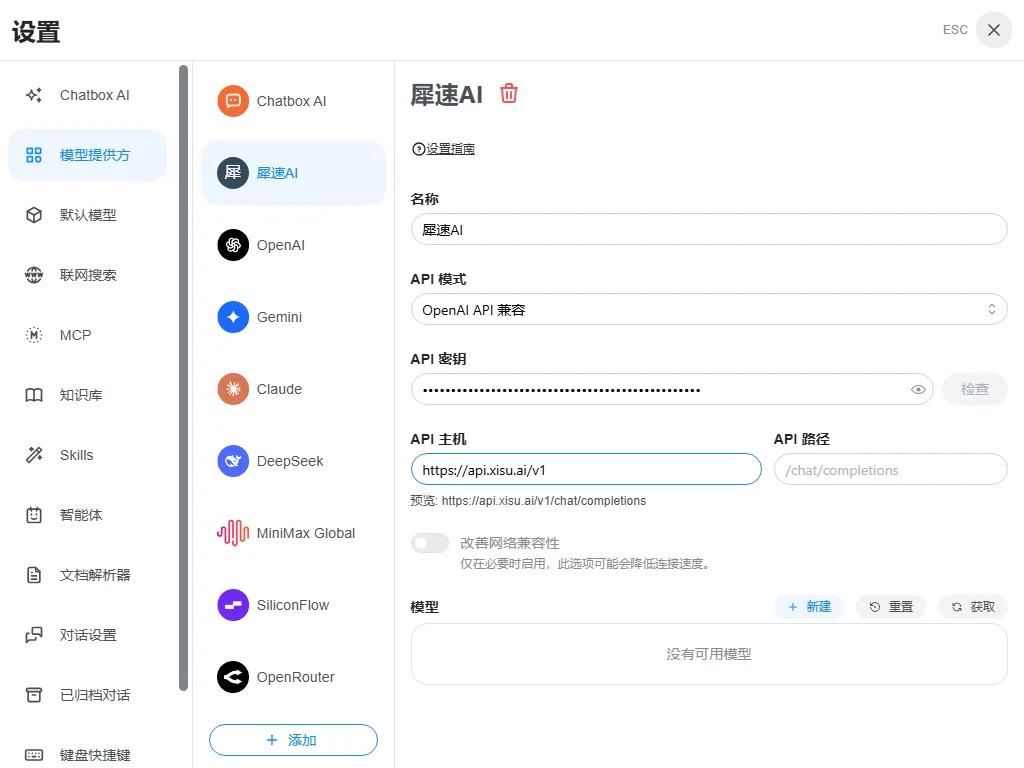
- In the model provider list, click Add at the bottom and choose Add custom provider; keep the API mode as OpenAI API compatible.
- Set the API host to
https://api.xisu.ai/v1and leave the API path empty. The preview should readhttps://api.xisu.ai/v1/chat/completions. - Click Fetch to add models, then Check. "Connection successful!" means you're done.
Troubleshooting:
- Failed to fetch models: make sure you're on the desktop or mobile app, the API host is
https://api.xisu.ai/v1, and the key has no extra spaces.
Full steps: Chatbox download and setup.
Codex desktop
Download: ChatGPT (by OpenAI) in the Microsoft Store. Make sure the publisher is OpenAI. Codex ships inside this app.
Setup:
- Put the Xisu AI settings in
%USERPROFILE%\.codex\config.toml:
model_provider = "xisu"
model = "gpt-5.6-terra"

[model_providers.xisu]
name = "Xisu AI"
base_url = "https://api.xisu.ai/v1"
wire_api = "responses"
env_key = "XISU_API_KEY"
- Store your key in the user environment variable
XISU_API_KEY. - Afterwards, quit the app completely (including the tray icon) and reopen it, or it won't see the new variable.
Troubleshooting:
- ChatGPT chat inside the app still uses your ChatGPT account and is unaffected by this setup; only Codex goes through Xisu AI.
- To switch back to your OpenAI account, delete the line
model_provider = "xisu"from config.toml.
Full steps: Codex desktop setup.
Codex CLI
Install: needs Node.js. On Windows, macOS and Linux:
npm i -g @openai/codex
Official project: https://github.com/openai/codex.
Setup:
- It shares config.toml and
XISU_API_KEYwith Codex desktop. If the desktop app is set up, the CLI works as soon as it's installed. - Run
codexfor interactive mode;/statusshould showModel provider: xisu. codex execis read-only by default. Add-s workspace-writewhen it needs to write files, and on Windows complete the sandbox setup once first.
Troubleshooting:
Missing environment variable: XISU_API_KEY: open a new terminal after setting the variable.--full-autogives "unexpected argument": the flag was removed in 0.162.1. Use-s workspace-write.
Full steps, plus how Responses differs from Chat Completions: Codex CLI guide.
Claude Code
Install: needs Node.js 22 or later:
npm i -g @anthropic-ai/claude-code
Or use the official install script, which doesn't need Node.js: curl -fsSL https://claude.ai/install.sh | bash on macOS / Linux, irm https://claude.ai/install.ps1 | iex in Windows PowerShell.
Setup:
| Environment variable | Value |
|---|---|
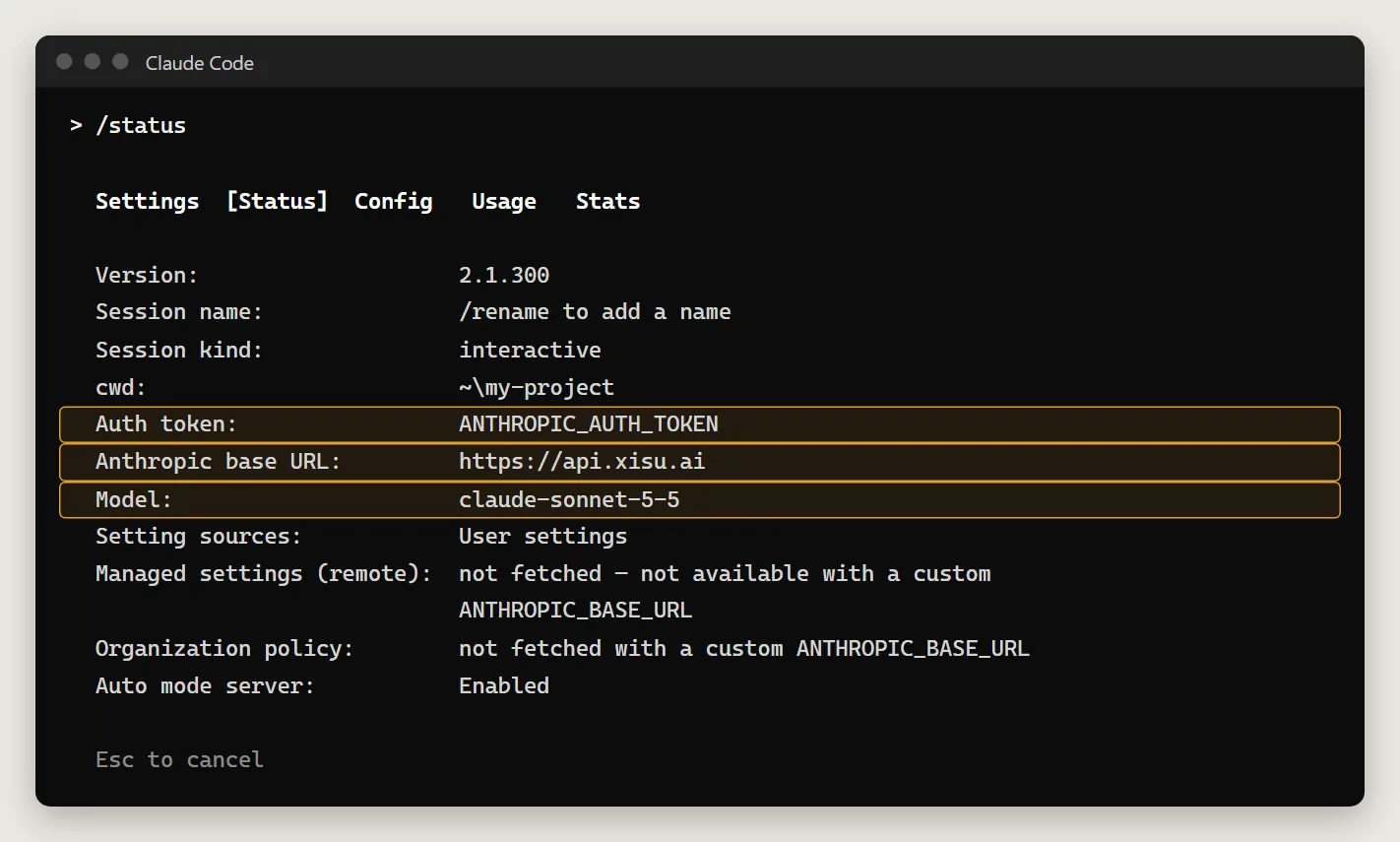
ANTHROPIC_BASE_URL |
https://api.xisu.ai (no /v1) |
ANTHROPIC_AUTH_TOKEN |
your key |
ANTHROPIC_MODEL |
claude-sonnet-5-5 (if unset it defaults to the pricier Opus) |
ANTHROPIC_DEFAULT_HAIKU_MODEL |
claude-haiku-5-5 (for background jobs) |
Troubleshooting:
- The first request of a session writes about 30,000 tokens to the prompt cache, so it costs noticeably more; later requests hit the cache and are much cheaper.
- An empty balance returns 429
rate_limit_error. Check your balance in the console instead of retrying. - Server tools such as WebSearch aren't supported. Reading and writing files, running commands and WebFetch all work.
Full steps: Claude Code guide.
General questions
401 or invalid key: check that the key is complete with no leading or trailing spaces. If it was revoked, create a new one.
Insufficient balance: top up in the console under Billing center. In Claude Code an empty balance shows up as 429.
One model fails, others work: that model is temporarily unavailable. Check its status on the Models page.
Can I use several clients at once? Yes. We suggest a separate key per client, so the Request log shows each one's usage and you can budget or revoke each key on its own.
Where do I see costs? The console's Request log lists the model, input/output/cache tokens and cost of every call. Prices or cost estimates shown inside a client (such as Claude Code's /model menu) are not Xisu AI's prices; the console is authoritative.
My client isn't listed: any client that supports an OpenAI-compatible API usually works with https://api.xisu.ai/v1 and your key; tools that speak the Anthropic API take https://api.xisu.ai. Parameter details are in Use your existing SDK or client.